Field of view 103. Ignore the graphics quality presets.
Home · Games · Overwatch
Overwatch pro settings for FPS on PC
The best Overwatch settings keep field of view at 103, V-Sync off, and NVIDIA Reflex on Enabled + Boost. If you searched for the best Overwatch 2 settings, the game is Overwatch. Copy this as the best Overwatch settings PC setup for a mouse: graphics, aim, sound, and the Windows steps below.
Boost my performanceDraft written 20 October 2026. These are PC mouse settings. Zoom numbers below are the usual one-to-one values at 103 field of view.
Quick wins
The five settings to change first
V-Sync off, triple buffering off, and NVIDIA Reflex on Enabled + Boost.
Render scale at 100 if FPS is fine, or around 80 if you need frames.
Shadow detail Low, not Off. Ambient occlusion, dynamic reflections, and local reflections off.
Fullscreen, native resolution, and the monitor's highest refresh rate.
Video
Overwatch graphics settings
Set render scale and frame rate to Custom, and turn dynamic render scale off. Cap frame rate with the slider. V-Sync caps FPS at the refresh rate and adds a lot of input lag, so leave it off.
| Setting | Value | Why |
|---|---|---|
| Field of view | 103 | The zoom values further down assume this |
| Dynamic render scale | Off | Render scale and frame rate both stay on Custom |
| Render scale | 100, or about 80 | Leave 100 if FPS is fine. Around 80 if you need FPS. Lower render scale thickens player outlines and costs sharpness |
| Frame rate | Custom, at least the monitor refresh | Higher if the PC holds it, because a higher frame rate lowers input lag |
| V-Sync | Off | Caps FPS at the refresh rate and adds a lot of input lag. Cap with the frame rate slider instead |
| Triple buffering | Off | Leave it off |
| Reduce buffering | Off in general | It depends on whether the PC is CPU-bound |
| NVIDIA Reflex | Enabled + Boost | The latency setting to use |
| Display mode | Fullscreen | Borderless is close. Use native resolution |
| Refresh rate | Monitor's highest | In Windows, search Display settings, then Advanced display, and pick the highest refresh rate |
| Graphics quality presets | Ignore | Set each option yourself |
| High quality upscaling | Off | It can add input lag |
| Anti-aliasing | As high as the PC allows, or Off | High for clarity. Off if you need frames |
| Texture quality | Low | Low for FPS. Higher only if the PC is already fast and you want the look |
| Texture filtering | 16x | Little FPS cost, and much clearer enemies |
| Local fog detail | Low | Set to Low |
| Model detail | Low | Higher adds objects that block vision |
| Shadow detail | Low, not Off | Off removes shadows you can use to see someone around a corner |
| Effects detail | Low | Less ability clutter and more FPS |
| Lighting quality | Low | Set to Low |
| Refraction quality | Low | High costs frames for little visual change |
| Ambient occlusion | Off | Off |
| Dynamic reflections | Off | Off |
| Local reflections | Off | Off |
Scoped heroes
One-to-one zoom at 103 field of view
These are the usual one-to-one zoom values at 103 FOV. A different aspect ratio can need a small change.
| Hero | Zoom |
|---|---|
| Ana and Widowmaker | 37.89 |
| Ashe and Cassidy (Silver Bullet) | 51.47 |
| Emre | 54.99 |
| Freja | 62.22 |
Speech-to-text on the source video said Amari and Pharah. This draft uses Emre (54.99) and Freja (62.22).
HUD, access, sound
What you see and hear
Turn the extra motion down, keep elimination sounds on, and let voice lines through.
HUD opacity
Ability timer ring opacity about 30%. Waypoint opacity and respawn icon opacity about 30%.
Accessibility
Camera shake Reduced. HUD shake Off. Subtitles off unless you use them to catch ultimates.
Sound
Master around 60%. Music off or very low so voice lines cut through. Play sound when a teammate is eliminated: On. Play sound when an enemy is eliminated: On.
Mouse
Overwatch sensitivity
A usual starting point is about 6 at 800 DPI. Double the in-game number at 400 DPI. Halve it at 1600 DPI. A full swipe should cover a 180 at minimum, up to a 360. Practice in the practice range. Under-flick means raise it. Over-flick means lower it. Then leave it.
Enable high precision mouse input: On. Path: Options, Controls, General.
Where to start
About 6 in game at 800 DPI. At 400 DPI, use double that in-game number. At 1600 DPI, use half of it.
How to tell
In the practice range, a full swipe should cover a 180 at minimum and can go as far as a 360. If you under-flick, raise it. If you over-flick, lower it. After that, stop changing it.
Crosshair
A crosshair you can see
Keep Overwatch crosshair settings simple and easy to see: a small mark in a color that stands off the map. This page does not paste a personal crosshair code.
Windows and NVIDIA
Windows and NVIDIA settings
Overwatch is often CPU-bound, which is why the Windows graphics switch below can help. Turn that switch off if a game gets worse.
Windows
- Startup apps: open Task Manager, then Startup apps, and disable apps you do not need at boot.
- Game Mode: on. Search "game mode".
- Hardware-accelerated GPU scheduling: Graphics settings, Advanced graphics settings, on. Turn it off if a game gets worse.
- Optimizations for windowed games: on if you play borderless.
- Refresh rate: search Display settings, then Advanced display, and choose the highest refresh rate.
NVIDIA
- Power management mode: NVIDIA Control Panel, Manage 3D settings, Prefer maximum performance.
- In game: NVIDIA Reflex set to Enabled + Boost.
- NVIDIA App overlay: off unless you record. The settings video prefers an OBS replay buffer over the overlay.
Hypertune
What Hypertune changes on the PC
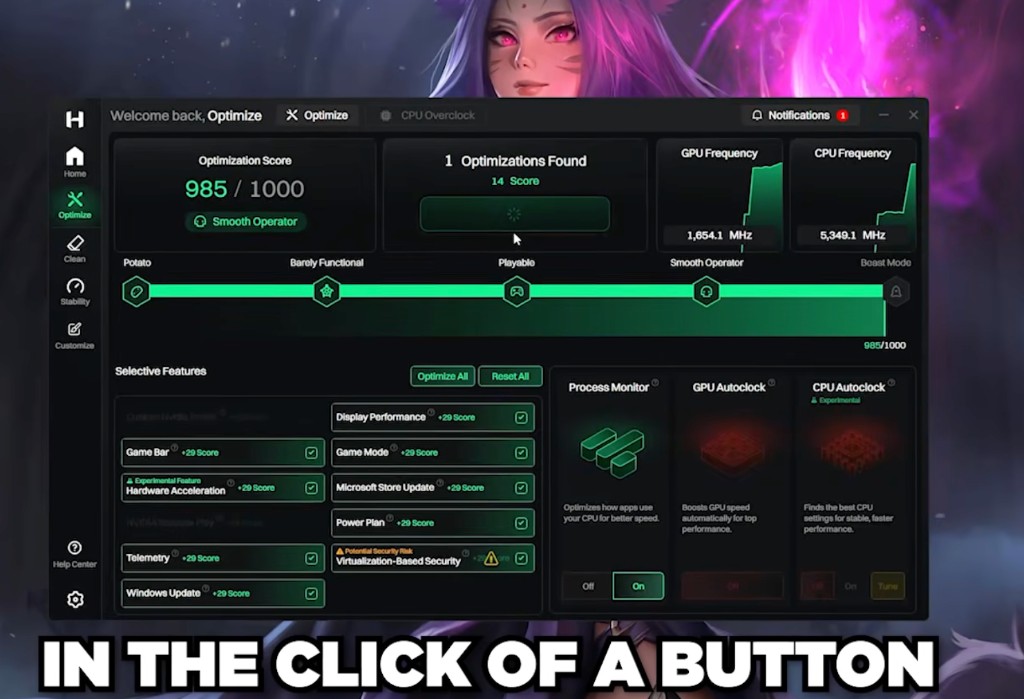
The Overwatch options above are ones you set in the game. Hypertune can apply CPU Overclocking, GPU Overclocking, Windows Debloating, Network Optimizations, Memory Optimizations, and Game Hub, and only the parts you turn on. Hypertune is $9.99 a month or $69.99 a year.
What this page is not claiming
No Overwatch Game Hub profile
You still set the in-game options
Hypertune makes no unsafe changes
Game files
Game Hub and game files
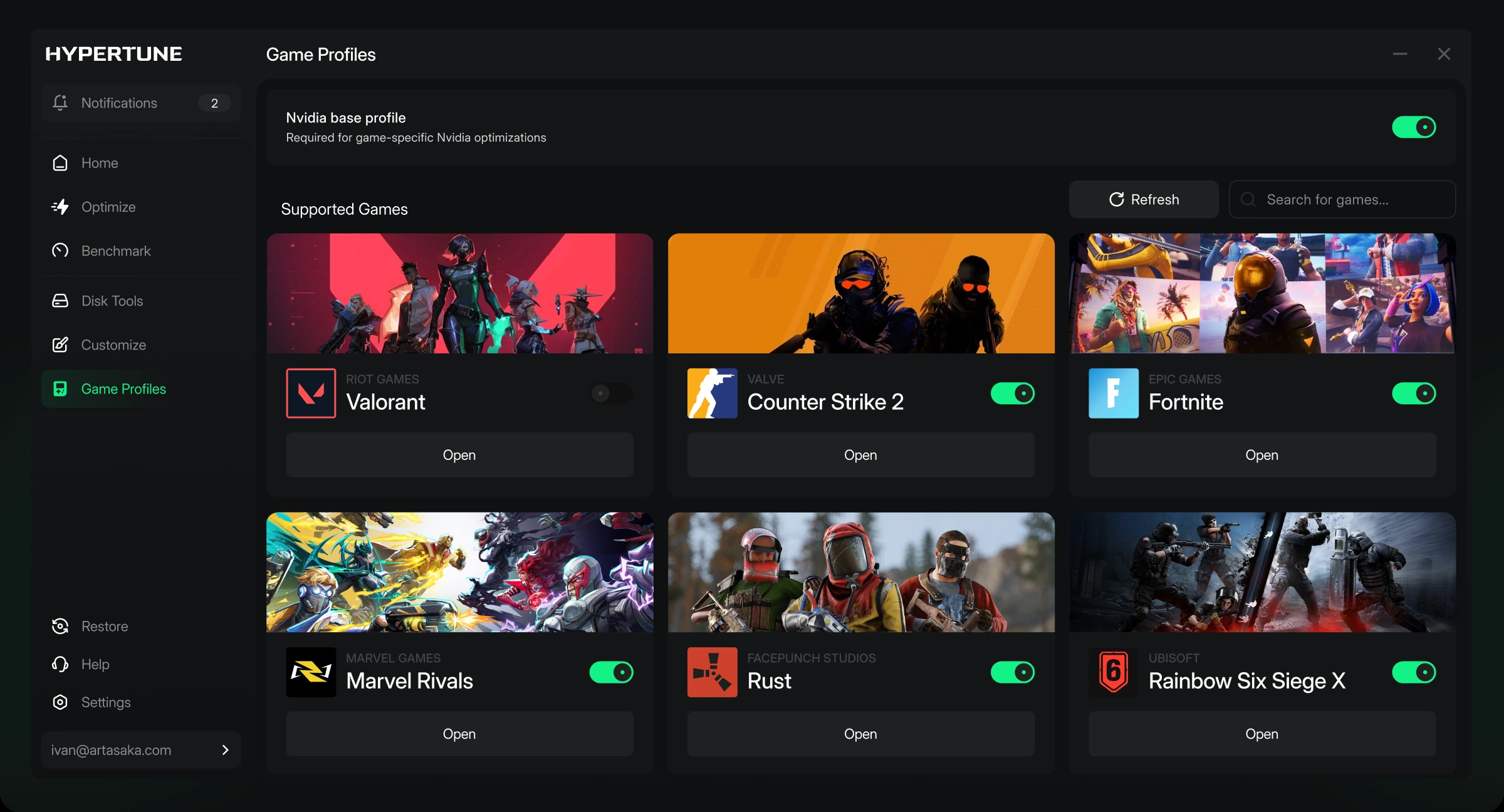
Game Hub profiles can change files inside a game. Hypertune makes no unsafe changes. Overwatch is not one of the six games on the current Game Hub screen.
Questions
Questions about these settings
What field of view should I use?
103. The zoom numbers on this page are the usual one-to-one values at that field of view. A different aspect ratio can need a small change.
Should V-Sync be on?
No. V-Sync caps FPS at the refresh rate and adds a lot of input lag. Turn it off, leave triple buffering off, and cap with the frame rate slider. Set that cap at least as high as the monitor refresh, and higher if the PC holds it.
Where do I start with mouse sensitivity?
A usual starting point is about 6 at 800 DPI. Double the in-game number at 400 DPI, and halve it at 1600 DPI. Turn on high precision mouse input under Options, Controls, General. In the practice range, a full swipe should cover a 180 at minimum, up to a 360. Raise it if you under-flick, lower it if you over-flick, then leave it.
Should shadow detail be off?
No. Set shadow detail to Low, not Off. Off removes shadows you can use to see someone around a corner. Ambient occlusion, dynamic reflections, and local reflections can stay off.
Does Hypertune include an Overwatch profile?
No. The current Game Hub screen lists Valorant, Counter-Strike 2, Fortnite, Marvel Rivals, Rust, and Rainbow Six Siege. Overwatch is not on that list. Game Hub profiles can change files inside a game. Hypertune makes no unsafe changes. The video, HUD, and mouse options on this page are ones you set yourself.